A public records request toolkit for school district teams
Seven practical templates for school district records intake, searches, department handoffs, review decisions, approval, requester updates and closure.

A public records toolkit should help a colleague pick up the work without needing the original coordinator to explain everything. That means preserving the request, the search, the unresolved decisions and the exact release—not simply checking a box that says “done.”
The templates below are operating aids for school district records teams. Adapt them to district policy and counsel’s guidance. They are not statutory notices or legal forms. Shield product details were checked against implementation documentation on November 10, 2026; confirm the deployed configuration for your district.
Template 1: The intake and ownership record
Use one record as the starting point for every request, including requests received outside your online form.
Request identifier and original request text.
Date, time and channel received, with the original message or document attached.
Requester’s preferred contact method.
Assigned custodian and backup coordinator.
Requested record categories, date range and likely record custodians.
Clarification questions, responses and the agreed scope.
Applicable deadlines, their basis and the person who verified them.
Next action, owner and planned requester update.
Keep revisions rather than overwriting the earlier scope. A colleague should be able to see why the team searched one period rather than another.
Shield’s documented intake process lets a custodian confirm the scope and export parameters. Its request list shows work across requests, while the timeline keeps the individual request’s progress together.
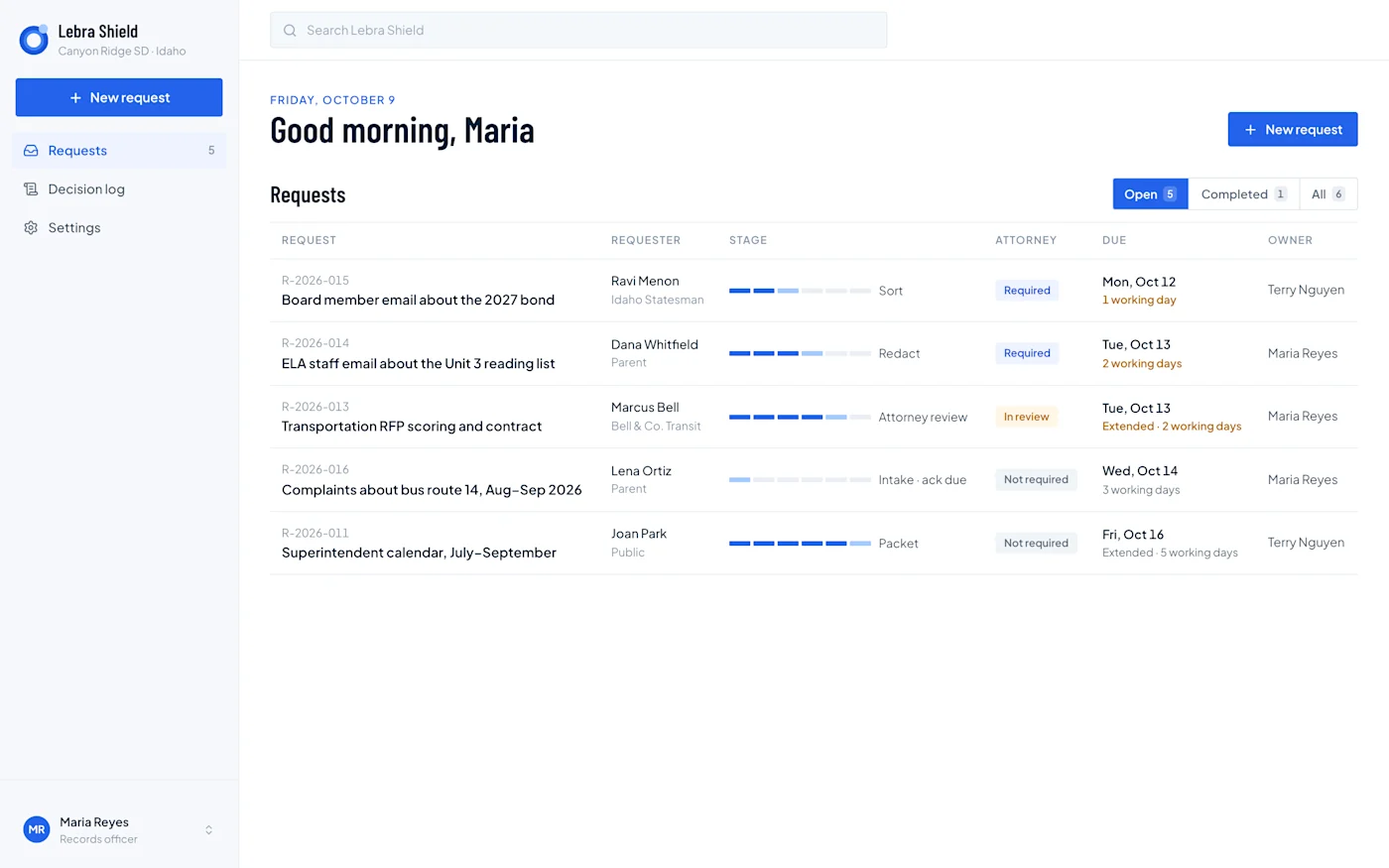
Shield demonstration request list with fictional Canyon Ridge data. The dashboard illustrates assignments and workflow stages; the example dates and counts are not customer performance results.
Template 2: The search and collection log
Create an entry for each material search, including a search that finds nothing. Record the system, account or custodian searched; query and date boundaries; person performing the search; export date; file names; secure storage location; and known limitations.
For an email export, add checks for message bodies, metadata, attachments and retrieval errors. Google’s export documentation explains that Vault exports carry data and supporting metadata. Preserve those together so reviewers can understand the collection. Google Vault export contents
A useful handoff says: “IT searched these accounts with these terms, exported these files, and identified these unresolved gaps.” “Files uploaded” is not equivalent to “search complete.”
Shield is based on imported records rather than live searches of every district system. Assign the collection work explicitly even when the review tool is handling the next stage.
Template 3: The department contribution record
Requests often cross departments. Use a small record for each contribution:
Department and named contact.
What to search for and where.
Whether responsive records are expected.
Estimate of staff work, if requested through an approved process.
Files supplied and date supplied.
Any source that could not be searched or exported.
Custodian’s confirmation that the contribution was received and checked.
Shield’s documented department workflow allows a custodian to request estimates and files from department contacts. That supports coordination, but it does not remove the custodian’s responsibility to reconcile the contributions against the scope.
For example, a transportation request may require both communications and procurement documents. A completed email export does not tell you whether the contract attachment has arrived.
Template 4: The review decision record
Separate two questions: does the record respond to the request, and what may be released? Record the document identifier, responsiveness decision, proposed redaction or withholding, supporting basis, reviewer, date and unresolved question.
For an automated suggestion, preserve what the reviewer decided and why. A useful entry might say that a name refers to an employee rather than the student with the same name. That explanation is more informative than a generic “AI corrected” note.
Shield’s documented people-confirmation process asks reviewers to resolve identities and roles, then uses that context in redaction review. It does not require an SIS roster upload. Keep remaining uncertainties visible until a responsible person resolves them.
Template 5: The approval and release check
Before authorizing delivery, assign someone to inspect the files the requester will actually receive.
Confirm that the package matches the approved scope.
Reconcile included records, exclusions, withholdings and failed files.
Review the original appearance of PDFs and reproduced document content.
Search and copy text around intended redactions.
Check attachments and relevant metadata.
Compare the response letter with the actual packet.
Record the approver, approval time and exact approved version.
Confirm the recipient and delivery method.
Shield supports optional attorney review. A custodian can approve when that route is not required, or send a reviewed draft to counsel when it is. Neither approval action, by itself, is the final delivery step. Your procedure should identify who performs each action.
Template 6: A useful requester update
Use plain language and include a next step:
“We’re working on request [ID], received [date], concerning [scope]. We have completed [specific step]. We are now [specific work]. Our next update is planned for [date]. Please contact [coordinator] with questions.”
This is an operational example, not a legally sufficient extension or withholding notice. Use the district’s approved legal language when required, and avoid promising a delivery date the team has not assessed.
Shield’s requester correspondence and status page can support these communications. Keep the approved message associated with the request so another team member can see what was promised.
Template 7: The closure and retention record
Record the delivered files, delivery evidence, retention destination, required retention period or policy reference, export owner and any preservation restriction. Verify the retained copy opens before closing the working request.
In Shield, closure purges working request content and leaves a content-free closure record. Export the district’s required production and audit material first. Do not treat the product’s close action as a substitute for a retention decision.
Start with one fictional request and run these templates from receipt to closure. The exercise will reveal missing owners and ambiguous handoffs before a real deadline. Continue with the workflow guide or ask for a Shield demonstration using the same example.
See what Lebra Shield can do for your district.
Schedule a demo